What: Outliner UI
Why: This is where you will select or duplicate or delete objects and so on
Time To Complete: 1-2 hours
Project: donut1_CCN.blend
Tasks: Memorize the names of things and write them in a notebook for future reference
Focus: Details of the UI arrangements and 3D objects reaction to your UI mouse/keyboard clicks are of importance here
¶ Outliner
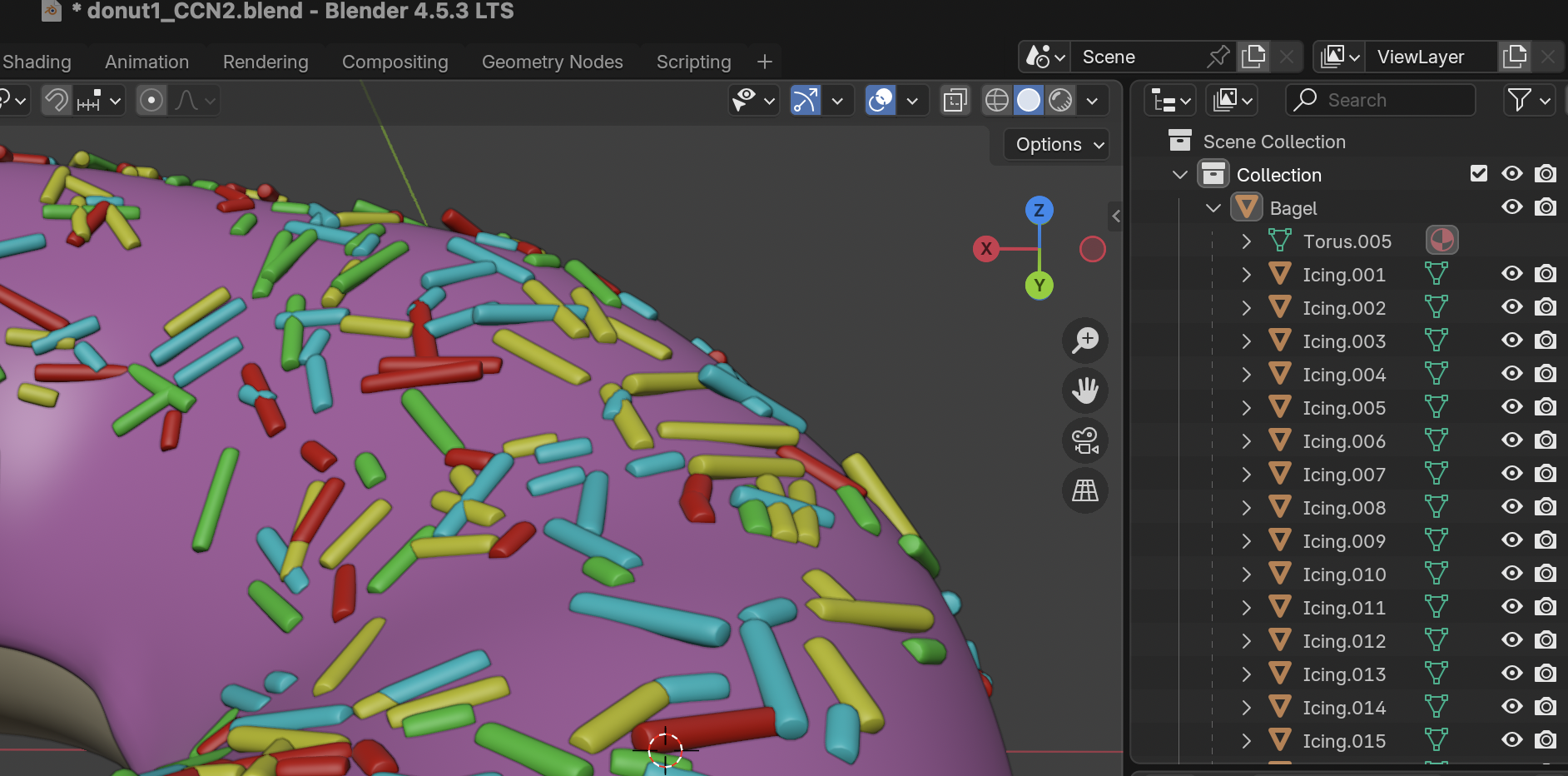
The Outliner shows the content of the blend-file in a tree. You can use it to:
- Get an overview of the data in the scene.
- Select and deselect objects.
- Make objects unselectable or invisible in the 3D Viewport.
- Exclude objects from rendering.
- Duplicate objects.
- Delete objects.
- Manage parent/child relationships and collections.
Items with an arrow on the left can be expanded. Click it with LMB to expand a single item, drag LMB to expand multiple items, or click Shift-LMB to expand an item recursively.
¶ Select an Object
- Outline contains Collections
- Collections contain Objects
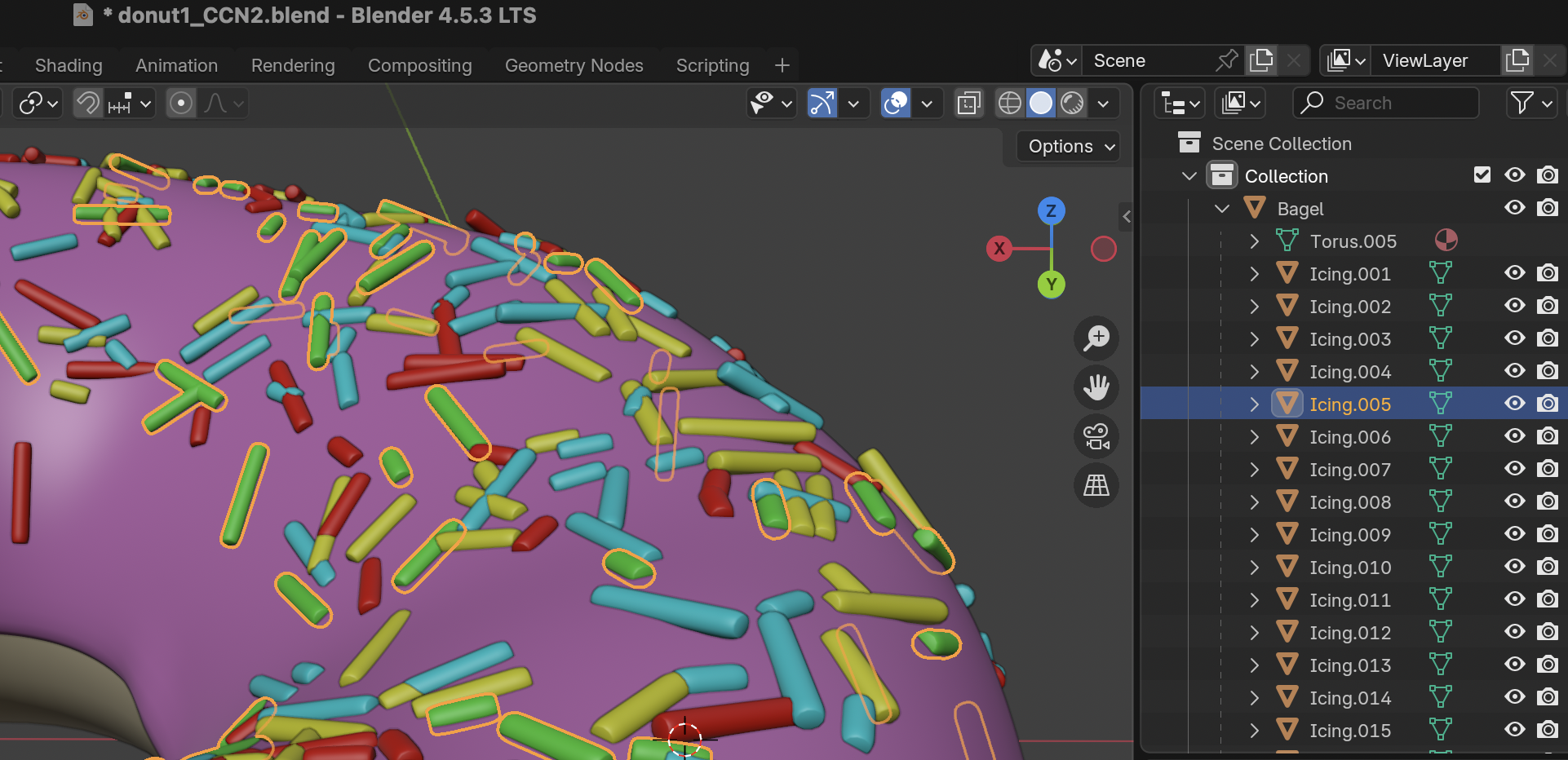
¶ Example 1: Collection Bagel,Object Icing.005
- Icing.005 contains many icings coloured green
- All objects/icings within the Icing.005 are highlighted by orange colour
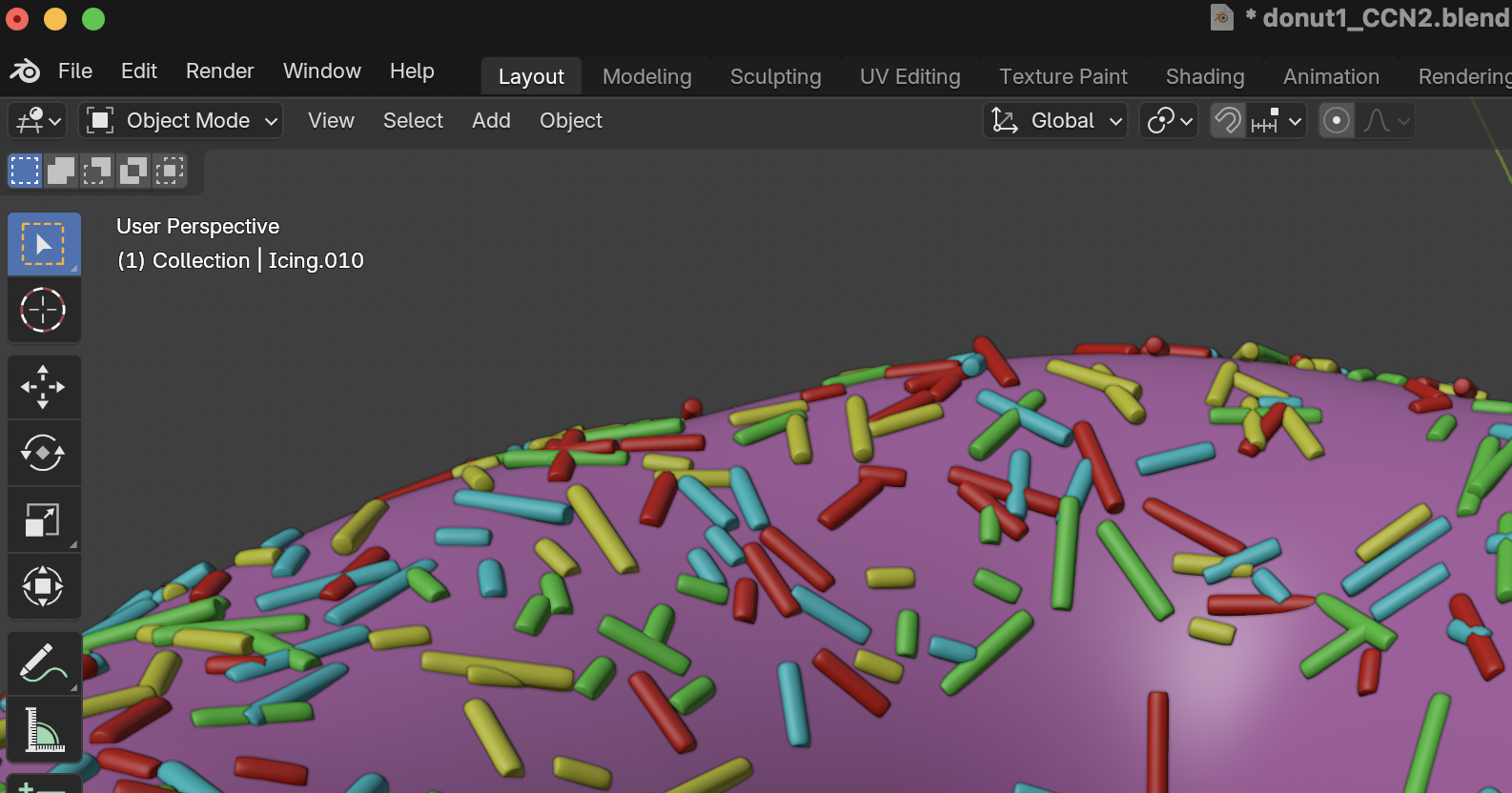
¶ Example 2: Collection Bagel,Object Icing.010
- Icing.010 contains one single icing coloured sapphire
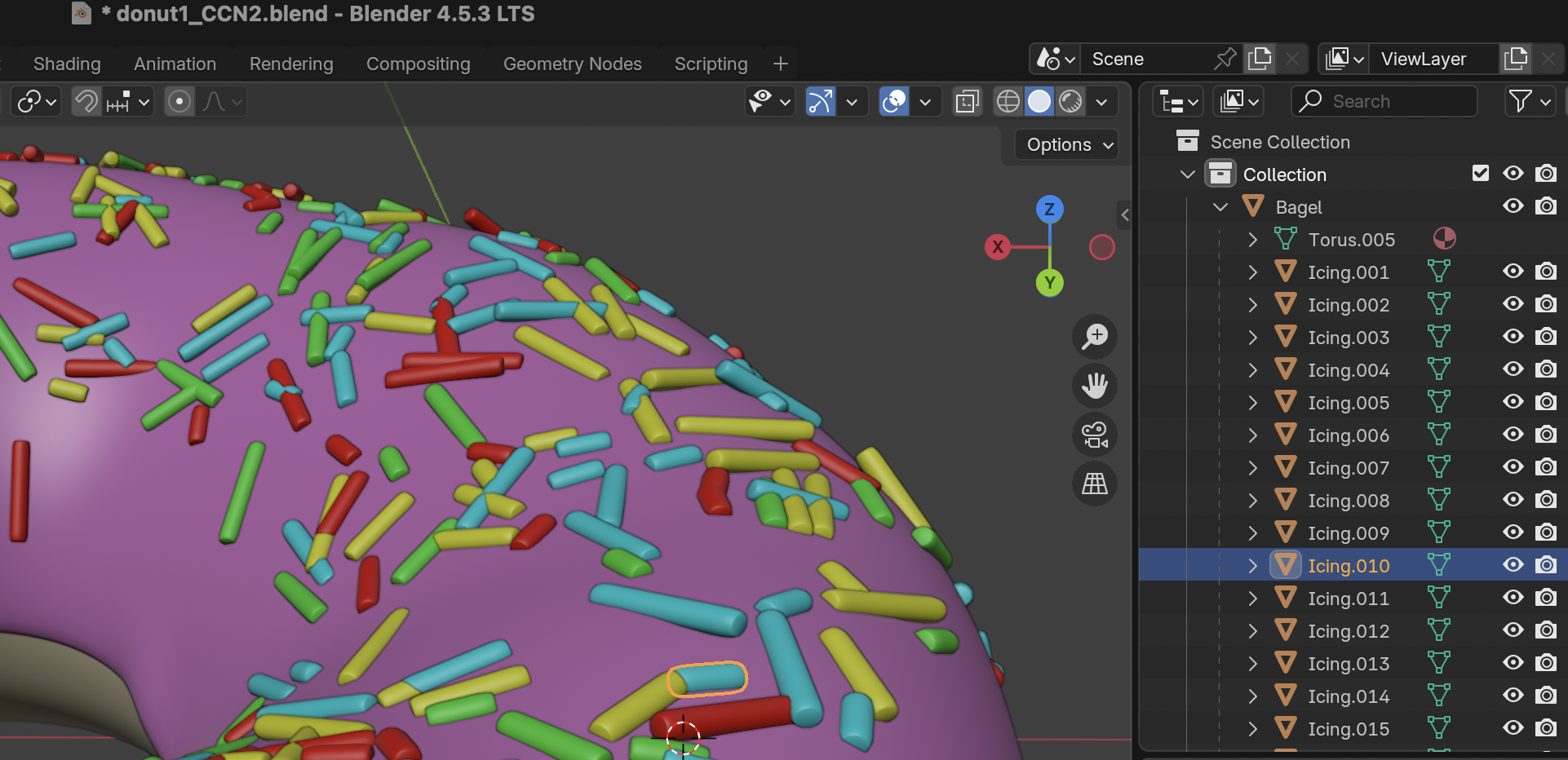
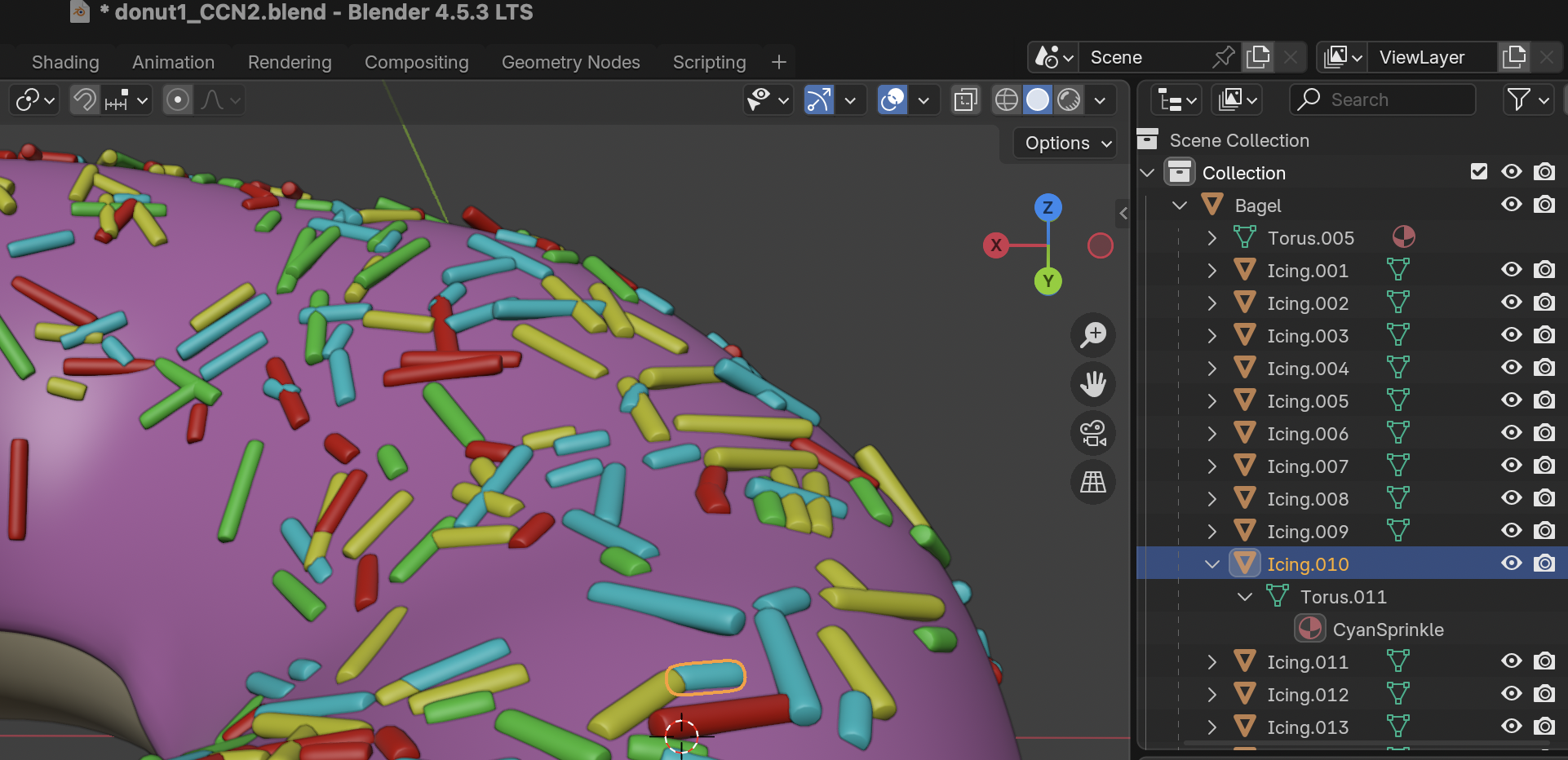
¶ Example 3: Collection Bagel,expand Icing.010
- Click on the white > icon to expand the Icing.010’s hierarchy
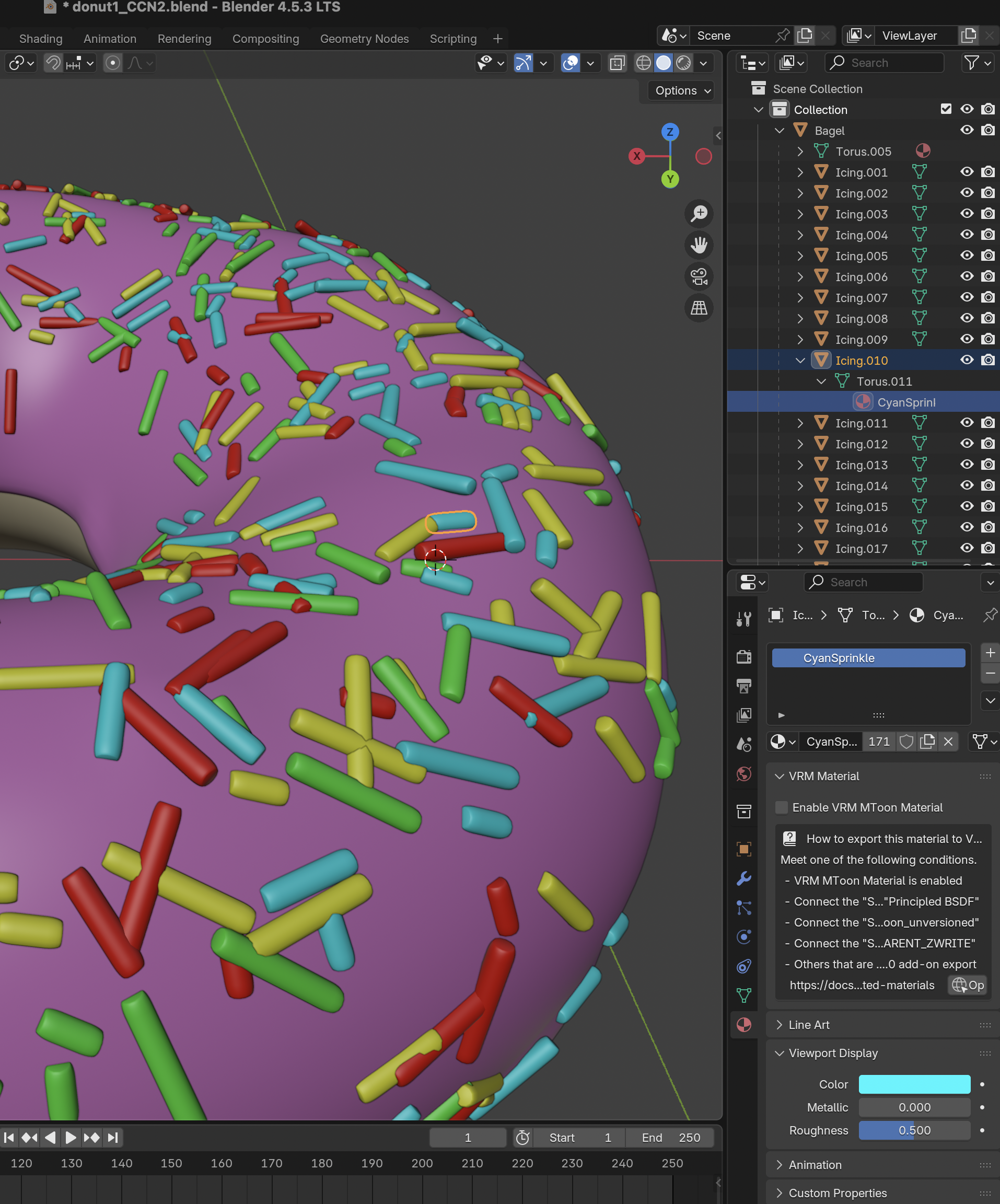
¶ Example 4: Collection Bagel,select Icing.010’s Material
- The material is called “CyanSprinl”
- Upon selecting the material the Area called Properties open a new UI specific to the “CyanSprinl” material, which could be used for many other objects in the scene
¶ Example 4.1: Change the color of the Material
- Click on the Color property of the Material “CyanSprinl”
- A new UI opens up to select a different color
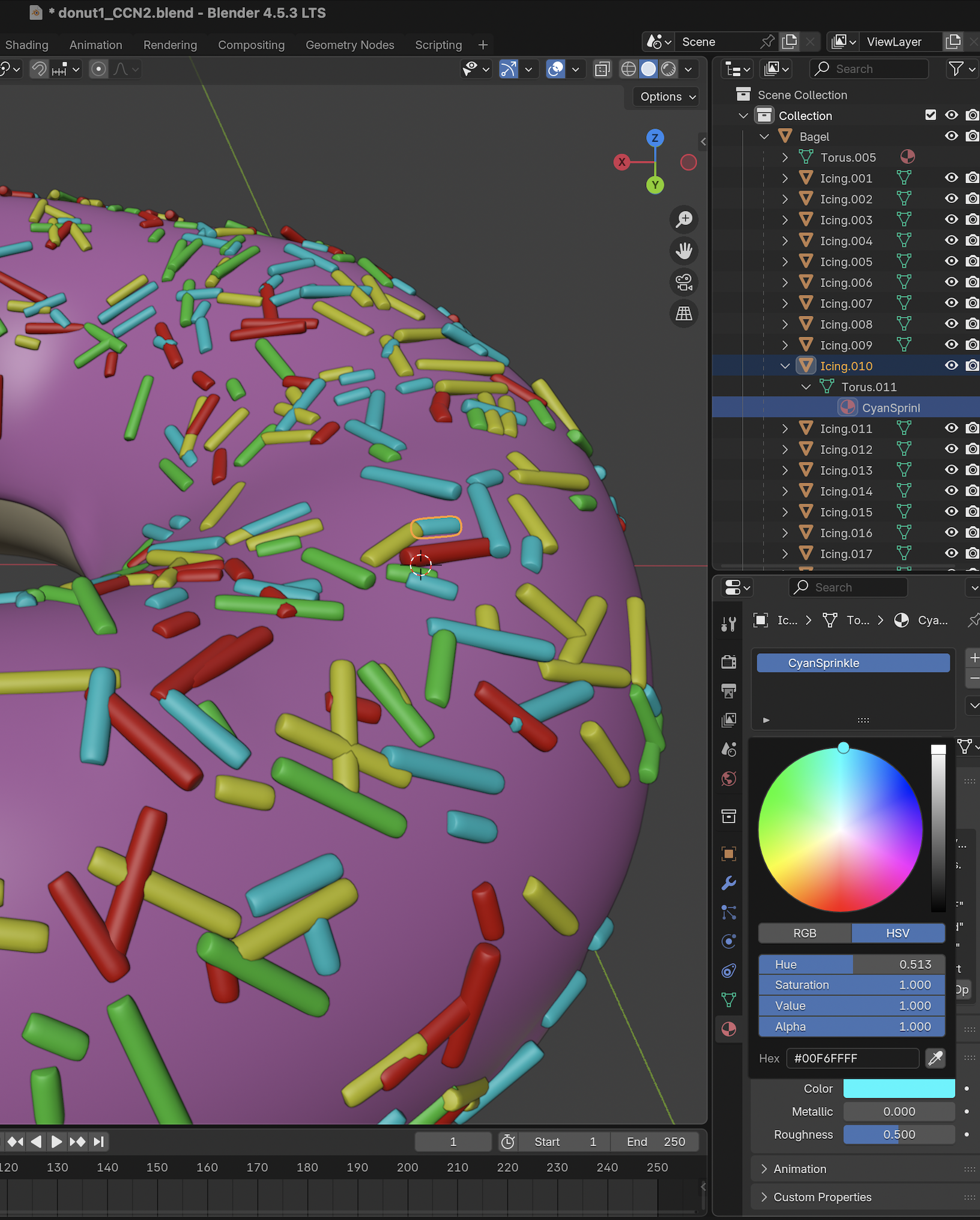
- Move the mouse towards the desired color and clock the colors of the 3D object changes instantly
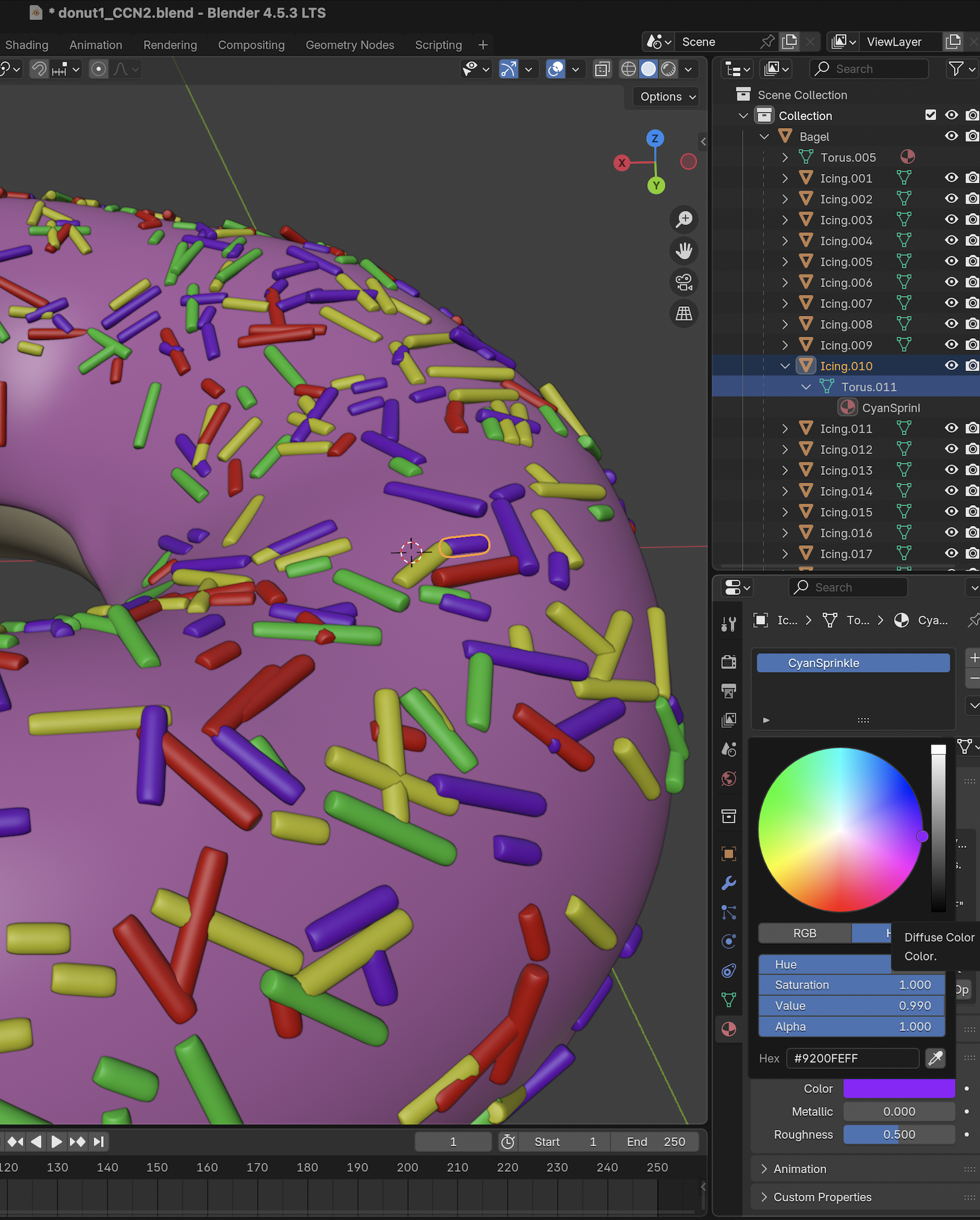
In many cases as in the case of the Material “CyanSprinl” since the material was share by other objects in the scene, alteration to its properties instantly reflects on all others with the same Material! For that reason and in order for changing only the color of one particular object you ought to create a new Material specific to that object.
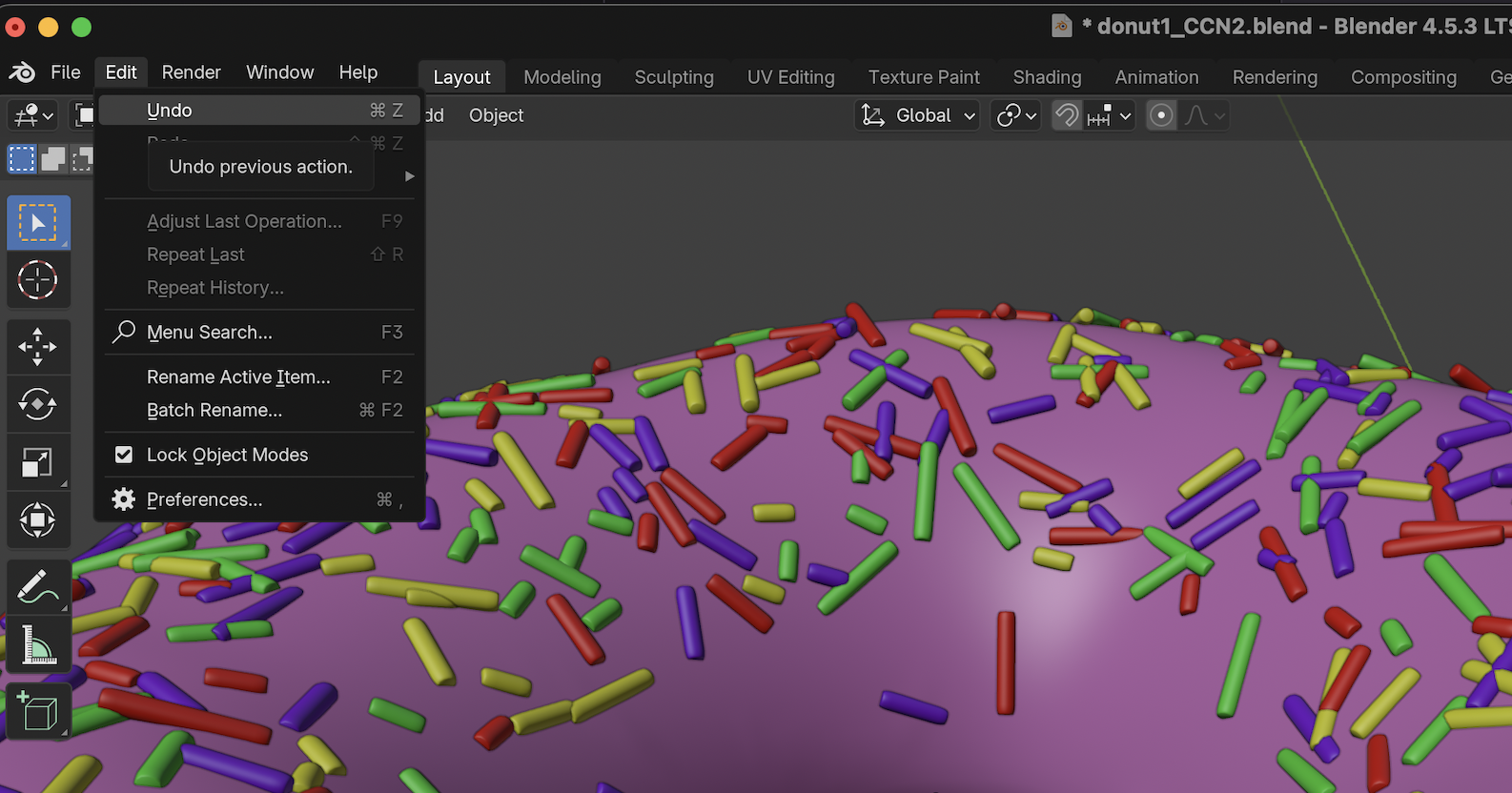
¶ Undo
- To undo, for instance, the undesirable color change above use the Blender’s main Editor to undo the history of alterations